UWC iKamva Login : University of the Western Cape
Organisation : University of the Western Cape (UWC)
Facility Name : iKamva Login
University Location : Bellville, South Africa
Website : https://ikamva.uwc.ac.za/portal
| Want to comment on this post? Go to bottom of this page. |
|---|
How To Login To iKamva?
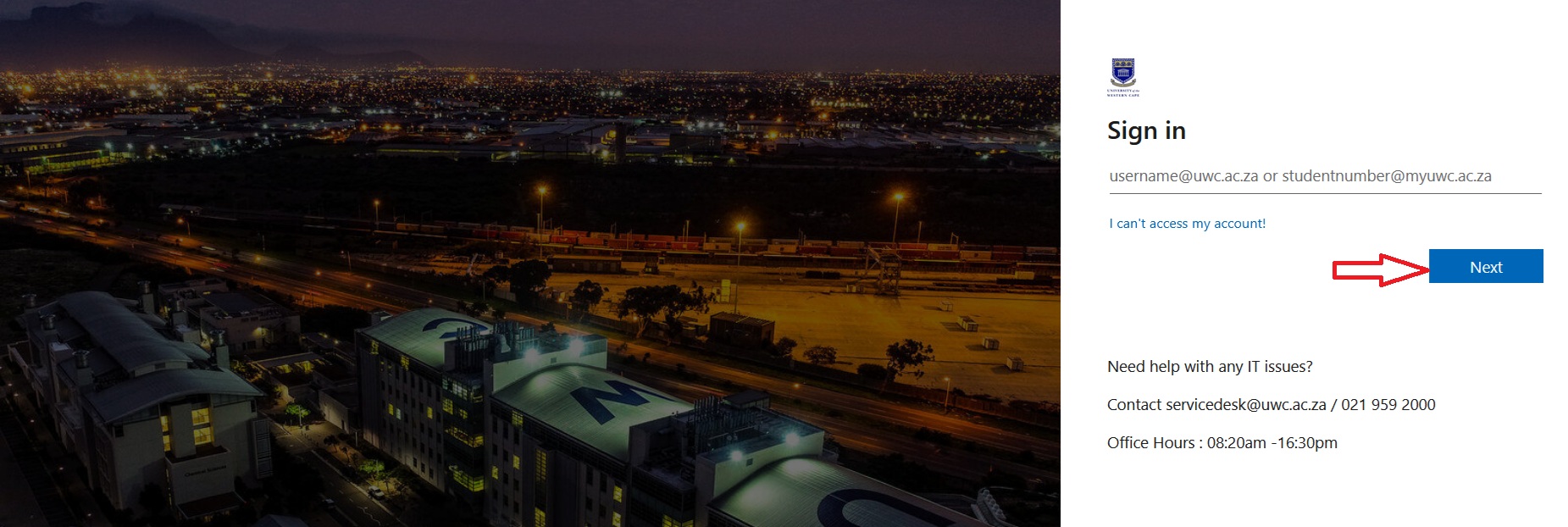
iKamva makes use of the Microsoft Active Directory (AD) Username and Password to authenticate student and staff login.
Related / Similar Facility : UWC Residence Application

Staff Access: Active Directory (AD) Details
Student Access: Username: Student number (4234567) Password: !StID number (!St0207152101082) OR !StPassport number (if you are an international student)
Please contact ICS service desk on (021 959 2000) or Email: servicedesk [at] uwc.ac.za to request a username and/or password change. Logging in to iKamva with your UWC Username and Password will grant you access to your online courses.
Should your login details fail to authenticate during the login process, it could be one of the following:
** Incorrect Username or Password (Retype your details and try again)
** Forgotten your Username or Password (contact ICS service desk at servicedesk [at] uwc.ac.za OR x2000)
** Active Directory (AD) account expired. Contact ICS service desk to re-activate your account.
FAQ On iKamva Portal
Frequently Asked Questions (FAQ) On iKamva Portal
How are students enrolled in course sites?
When course instructors/lecturers add courses to iKamva during the site creation process, students are automatically enrolled in the dedicated courses. iKamva makes use of the Student Administration Systems Integration (SASI) services to update the student list. Once the SASI system is updated it will reflect in the iKamva course.
How can I access my iKamva courses?
After you login, you will automatically enter your private site named “My Workspace.” To the right of the My Workspace tab, you will see more tabs for your course or project sites in the top menu. Click on the tab with the name course or project site you wish to enter. If the course does not reflect click on ‘More sites’ to view the rest of the modules you are linked to.
Can students access iKamva from off campus?
Yes. Students and lecturers can access iKamva from anywhere off campus, as long as they have a device with internet connection. This can be via a laptop or PC at home, at an internet café, even at the beach. Users should have internet connection.
Can students delete my course notes off iKamva?
Students can only view your course notes and download the course resources that you place on iKamva. Students are not able to delete or edit your course materials that you have placed on iKamva.
Can I access iKamva with my mobile device?
A mobile application was developed for mobile devices which runs on the Android platform. Users are able to download the App from the iKamva website.
Which eTools are available in an iKamva course site?
Below is a list of the tools currently available in a course site. You may add or remove tools according to your needs. For instructions on how to use any of the these tools, use the ikamva “Help” link located in any course menu.
** Home page: For viewing recent announcements, calendar, discussion, and chat items
** Announcements: For posting current, time-critical information
** Assignments: For posting, submitting and grading assignments) online
** Blogs: For Blog entries by site participants both lecturers and students/participants.
** Calendar: For posting and viewing deadlines, events, etc.
** Chat Room: For real-time conversations in written form
** DropBox: For private file sharing between instructor/lecturer and student
** Email Archive/Listserv: For viewing email sent to the sites email address
** External Tool: Launch external tools using IMS Learning Tools Interoperability
** Discussion Forums: For asynchronous discussions among site members. Displays forums and topics for a particular module/site
** Gradebook: For storing and computing grades manually or automatically entered
** Lessons: For creating content modules and sequences; can be organized by week, unit or chapter
** Messages/Email: For contacting course members through email or internal messages
** Modules: For authoring, publishing, and organizing learning sequences
** News/RSS Feeds: For viewing content from online sources.
** Podcasts: For managing individual podcast and podcast feed information
** PostEm/Feedback: For providing feedback to students on course progress.
** Polls:Can be used for anonymous polls or voting within the class
** Course Resources: For uploading files, publishing documents, sharing external links, creating HTML documents and citation lists, creating folders for group work, etc.
** Classlist: For viewing the site participants list
** Search: For searching content by keywords
** Section Info: For managing sections within a site
** Sign-up: Enables signup for meetings, office hours, and other events
** Site Info: For managing sites tools, site members
** Statistics: For showing site statistics by user, event, resource, etc.
** Syllabus: For posting a summary outline and/or requirements for a course
** Tests & Quizzes: For creating and taking online tests and quizzes
** VoiceThread: For sharing slides, images, and videos and having group conversations around media
** Web Content: For creating links to the web or course content
** Wiki: For collaborative editing of pages and content
What if the ICS and CIECT buildings are burnt down, how will we access iKamva?
The iKamva platform is not physically hosted at CIECT. The servers and databases are hosted on virtual machines within a server cluster, and can be restored from backup if needed.